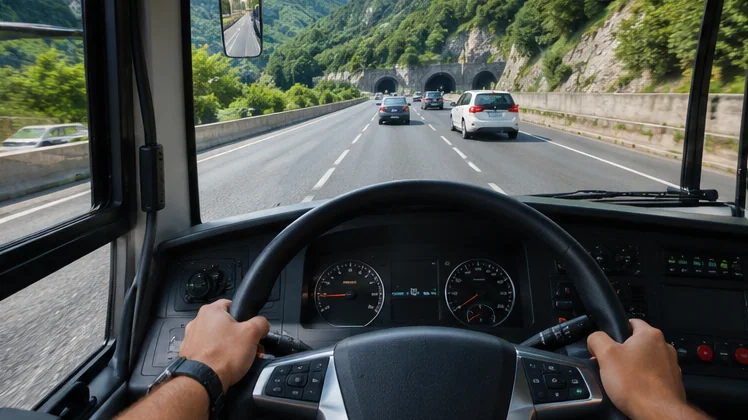
Bus Simulator : Ultimate PC sessions run through an Android emulator, which means two layers of settings shape the experience: the emulator itself and the options inside the game. Getting both right turns a choppy, blurry picture into smooth coach driving that stays readable on long night routes.
This article assumes the emulator and game are already installed. If not, start with the emulator setup walkthrough, then return here to tune resolution, frame rate, graphics quality and controls.
Emulator Settings That Matter Most
Performance mode, CPU cores and memory are the core settings. Giving the emulator four cores and around half your system RAM suits most mid-range machines. Leave the rest for Windows, otherwise background tasks slow everything down, including the game.
Resolution and frame rate come next. A 1920 by 1080 display resolution looks sharp on most monitors, and a 60 frames per second cap keeps motion smooth without overloading the graphics card. Laptops with integrated graphics may prefer 1600 by 900 for steadier results.
| Setting | Mid-range PC | Basic laptop |
|---|---|---|
| CPU cores | 4 | 2 to 4 |
| Memory | About half of system RAM | About half of system RAM |
| Display resolution | 1920 by 1080 | 1600 by 900 |
| Frame rate cap | 60 | 30 to 60 |
| Graphics engine | Try both DirectX and OpenGL | Pick whichever is more stable |
In-Game Graphics Options
The game includes quality settings that change shadows, reflections, draw distance and traffic density. Shadows and reflections are usually the heaviest, especially in large stations full of buses. Lowering them gives the biggest speed gain for the smallest visual loss.
Draw distance affects how far ahead scenery appears. A longer distance looks impressive on highways, yet it raises the load in dense cities. A medium setting is a sensible compromise, then adjust after driving a few routes through different map areas.
Suggested Tuning Order
- Start on a medium preset and drive a busy city route.
- Lower shadows first if the frame rate drops.
- Reduce reflections next, then traffic density.
- Raise texture quality last, as it mainly uses memory.
Controls That Feel Natural on a Keyboard
Steering with keys is digital, so turns can feel sudden. Many emulators allow a smoothing or sensitivity option on mapped directional keys. Lower sensitivity gives gentler steering on highways, while slightly higher sensitivity helps when turning into station bays.
Group related actions together. Doors, indicators and the handbrake near the left hand; lights, horn and camera switching near the right. A layout that never makes you look down at the keyboard keeps attention on the road, where it belongs.
- Bind a key to switch between interior and exterior cameras.
- Map the mouse wheel to camera zoom when the emulator allows it.
- Keep a dedicated key for the hazard lights on long stops.
Night Routes and Visibility
Night driving changes how settings feel. Dark scenes hide detail, so a slightly higher brightness inside the emulator or monitor helps. Headlights matter too: switch them on early in the evening, since passengers and traffic appear late in low light.
Monitor settings can rescue dim scenes. A small gamma increase brings out road edges without washing out bright signs. Avoid extreme sharpening filters, which create shimmering on building edges and make long routes tiring for the eyes.
Fixing Stutter, Tearing and Input Delay
Stutter usually means the processor is overloaded. Close background apps, check that virtualization is on and give the emulator more cores. Screen tearing points to a frame rate higher than the monitor refresh rate, so cap frames at the refresh value.
Input delay often comes from power-saving modes on laptops. Plug in, set the high-performance power plan and select the dedicated graphics card for the emulator in Windows graphics settings. These steps also reduce heat-related slowdowns during long sessions.
| Problem | First fix |
|---|---|
| Stutter in cities | Lower shadows and traffic density |
| Screen tearing | Cap frame rate to monitor refresh rate |
| Delayed steering | Plug in and use high-performance power plan |
| Blurry picture | Raise emulator resolution and turn off upscaling filters |
Building a Comfortable Driving Setup
Physical comfort matters on long coach routes. Place the monitor at eye level, keep the keyboard close, and sit far enough back to see the whole screen without turning your head. Good posture keeps attention sharp during routes that last much longer than a quick phone session.
Audio adds a lot to immersion. Headphones bring out engine tone, door sounds and indicator clicks, which act as useful cues while driving. Keep the volume moderate during long sessions to stay comfortable.
- Monitor top roughly at eye height.
- Room lighting soft enough to avoid screen glare.
- Short breaks every hour to rest the eyes.
Saving and Reusing Your Settings
Once everything feels right, record the emulator settings and back up the key mapping profile. Emulator updates occasionally reset options, and having notes makes recovery quick. Some emulators let you export profiles directly, which is the easiest way to restore a layout.
Revisit settings after major game updates too. New content can change how demanding certain scenes are, so a quick test drive through a busy station after each update shows whether any adjustment is needed.
Frequently Asked Questions
What frame rate should I target?
Sixty frames per second feels smooth for most players. Thirty is playable on weaker laptops if it stays steady.
Does a controller work?
Many emulators support gamepads and let you map sticks and triggers to the touch controls, which gives smoother throttle and braking.
Why does the game look blurry?
Low emulator resolution or an upscaling filter is the usual cause. Match the emulator resolution to your monitor where performance allows.
Conclusion
Bus Simulator : Ultimate PC performance depends on balanced emulator resources, a sensible frame rate cap and in-game graphics tuned in the right order. Pair that with a tidy key layout and good night visibility, and long coach routes become smooth and comfortable.
Keep the game current through the Play Store inside your emulator, or get the latest package from the download section.